


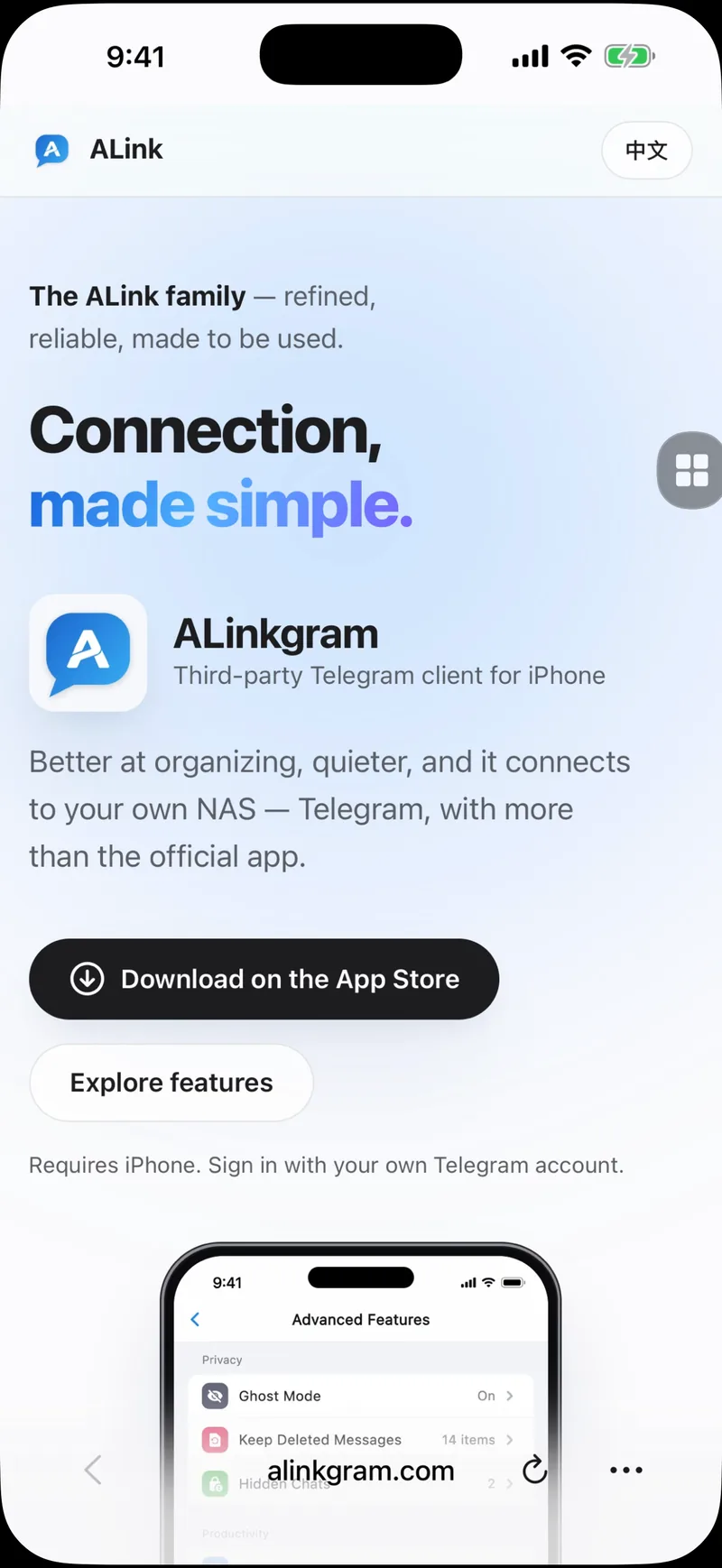
The ALink family — refined, reliable, made to be used.

Help is just
a screen away.

ALink Remote icon

ALink Remote

For the helper's iPhone

See another iPhone's screen in real time, talk it through with intercom, and send help messages and files — directly and encrypted, with no account.

Coming soon to the App Store How it works

The iPhone being helped installs ALink Screen Share.

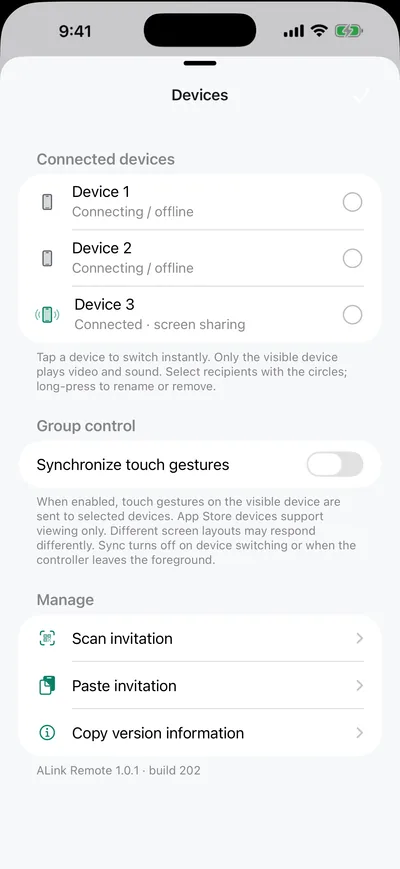
ALink Remote device list
ALink Remote showing another iPhone's screen live
How it works

Three steps. No account.

Sharing always starts on the iPhone being helped, and it can be stopped there at any time.

Get the invitation

The person you're helping opens ALink Screen Share and taps Invite a helper. A private QR code appears on their iPhone.

Scan once

Scan it in ALink Remote. The device is saved — next time it reconnects by itself.

Watch and help

When they start sharing, their screen appears live. Talk it through or send a note.

Features

Like sitting side by side.

Live screen

See exactly what they see.

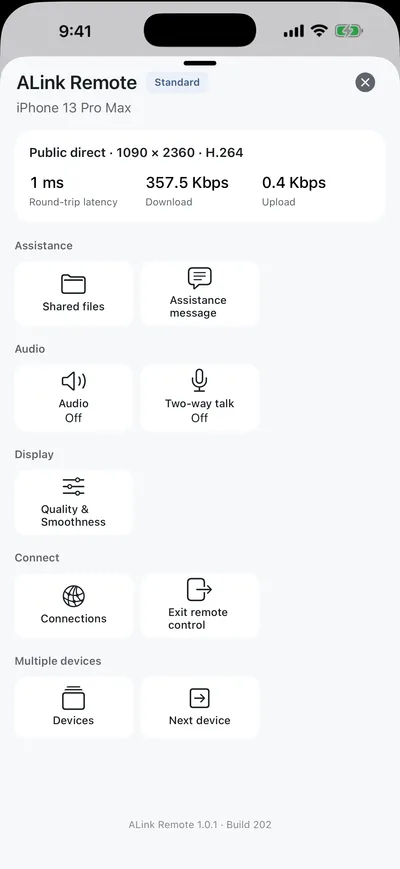
HEVC video that adapts to the network and to your screen, with round-trip latency and bandwidth always one tap away.

  • Automatic quality, or choose your own
  • Listen to the device's audio
  • Encrypted end to end
ALink Remote menu: connection status, assistance, audio and quality
Talk and help

Talk it through, leave a note.

Turn on two-way intercom when both sides are ready. Send an assistance message that arrives as a notification, and stays until it's swiped away.

  • Intercom is off until the shared device turns it on
  • Messages arrive as notifications
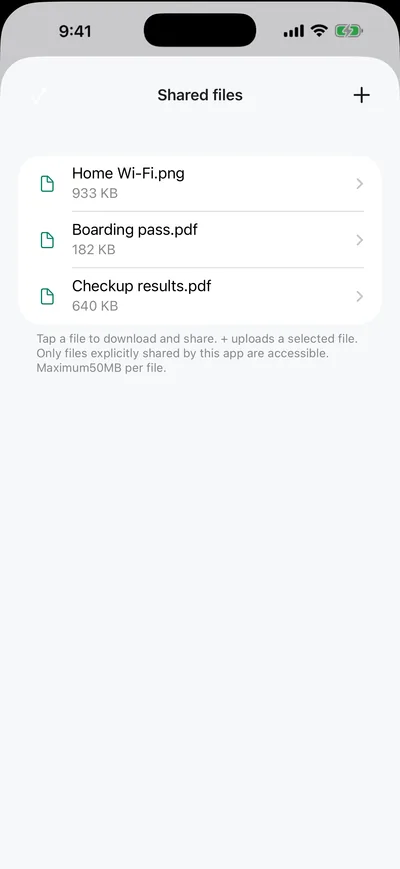
  • Exchange files the other person chose to share
Shared files list

Everyone in one list

Keep your parents' and kids' iPhones in one place and switch with a tap. Only the selected device plays video and sound.

Same Wi‑Fi, zero setup

At home it just connects. Away from home, turn on Network connection and use your own Tailscale account.

Hear what they hear

Turn on device audio to hear what's playing on their iPhone, right along with the picture.

Privacy

Their screen, their call.

View only

You can see and talk, but you cannot tap or type on the other iPhone.

Direct and encrypted

Devices connect directly with a private key. Nothing passes through our servers — we don't have any.

No account, no tracking

No sign-up, no ads, no analytics.

Companion app: ALink Screen Share

Installed on the iPhone being helped. It starts sharing and can stop it at any time.

Learn more
Support

We're here to help.

Contact support

Questions or feedback? Email us — we usually reply within 2 business days.

[email protected]

FAQ

Which app goes on which iPhone?
The helper installs ALink Remote. The iPhone that needs help installs ALink Screen Share (shown as ALink Standard in the app).
Can I tap or type on their iPhone?
No. You can view, talk and send messages or files. iOS does not allow other apps to tap for someone.
Does it work when we're not on the same Wi-Fi?
Yes, with Network connection: both apps sign in to the same Tailscale account once, then connect from anywhere. On the same Wi-Fi nothing extra is needed.
Why is the screen black?
Sharing only runs while the other iPhone is broadcasting. Ask them to tap Start screen sharing in ALink Screen Share and confirm Apple's sheet.