Touch and typing
See the screen in real time, navigate with taps and swipes, and enter text from the controller.
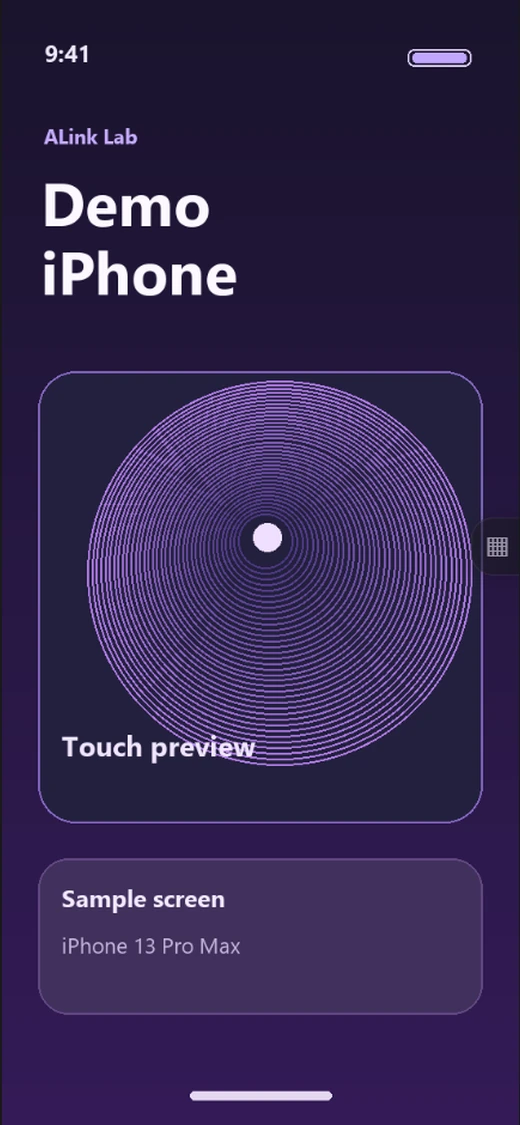
Tap, swipe, and type from another iPhone or a Windows PC. ALink Pro works with iPhones that support TrollStore.
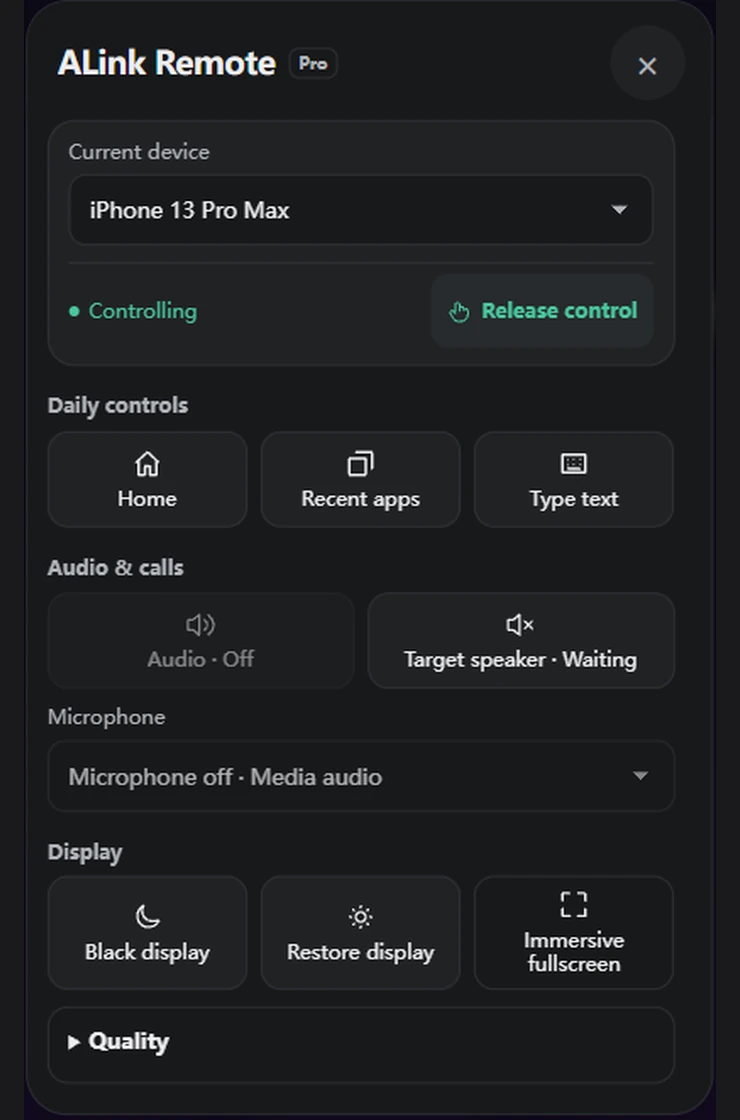
See the screen in real time, navigate with taps and swipes, and enter text from the controller.
Show a black screen on the controlled iPhone while keeping the live view on the controller.
Listen to the iPhone’s media audio or enable the controller microphone when you need to talk.
Turn on Web access in ALink Pro to open an invited iPhone in a browser. Each iPhone serves its own page, without a Windows host.
Several viewers can watch one iPhone. One controller sends input at a time.
An authorized AI can use the browser invitation to see the live screen, tap, swipe, and type on the iPhone.
Use separate device invitations to connect approved AI workflows, browser automation, or a multi-device dashboard. Only the current controller can send input to each iPhone.
Join your Tailscale network from inside ALink Pro. The target iPhone needs no separate Tailscale app. Use an authorized device in the same private network to connect away from home.
Connect over your local network, plug into a trusted Windows PC, or use Tailscale for access away from home.
Install ALink Pro with TrollStore and activate the iPhone online.
Use ALink Remote on the other iPhone to open an invitation and take control.
Open the browser invitation over HTTPS. Keep the invitation private.
Install ALink Pro on the iPhone you want to control. ALink Remote runs on the other iPhone.

1.0.1 · Build 244 · iOS 14.0+
Requires a TrollStore-compatible iPhone. Tested on iPhone 13 Pro Max with iOS 15.4.1.
iOS 14 has not been tested on a physical device.
Usage statistics and crash reports are optional and off by default. You can manage them in Privacy.

Use ALink Remote on the other iPhone to open an invitation and take control.
Download on the App StoreAfter online activation, LAN and USB connections work offline while the device license is valid.
Unbind the old device online, then use the new activation code on the replacement iPhone.
For screen sharing and intercom, use ALink Screen Share.